
Registry & Filesystem Monitoring
While Procmon captures individual registry and file operations in real-time, dedicated snapshot comparison tools reveal the cumulative impact of malware execution. Regshot, Autoruns, and filesystem diffing answer the question: "What changed on this system between before and after the malware ran?"
1. Regshot: Registry & Filesystem Snapshots
Regshot is a lightweight open-source tool that takes before/after snapshots of the registry and filesystem, then produces a diff report showing everything that changed.
Regshot Workflow
Step 1: Before executing malware
  → Open Regshot
  → Select "Scan dir1" and enter: C:\
  → Click "1st shot" → "Shot"
  → Wait for scan to complete (30-60 seconds)

Step 2: Execute the malware
  → Run the sample
  → Wait 3-5 minutes for behavior

Step 3: After execution
  → Click "2nd shot" → "Shot"
  → Wait for scan to complete

Step 4: Compare
  → Click "Compare"
  → Output format: HTML document (recommended) or plain text
  → Save the comparison report
Reading the Regshot Report
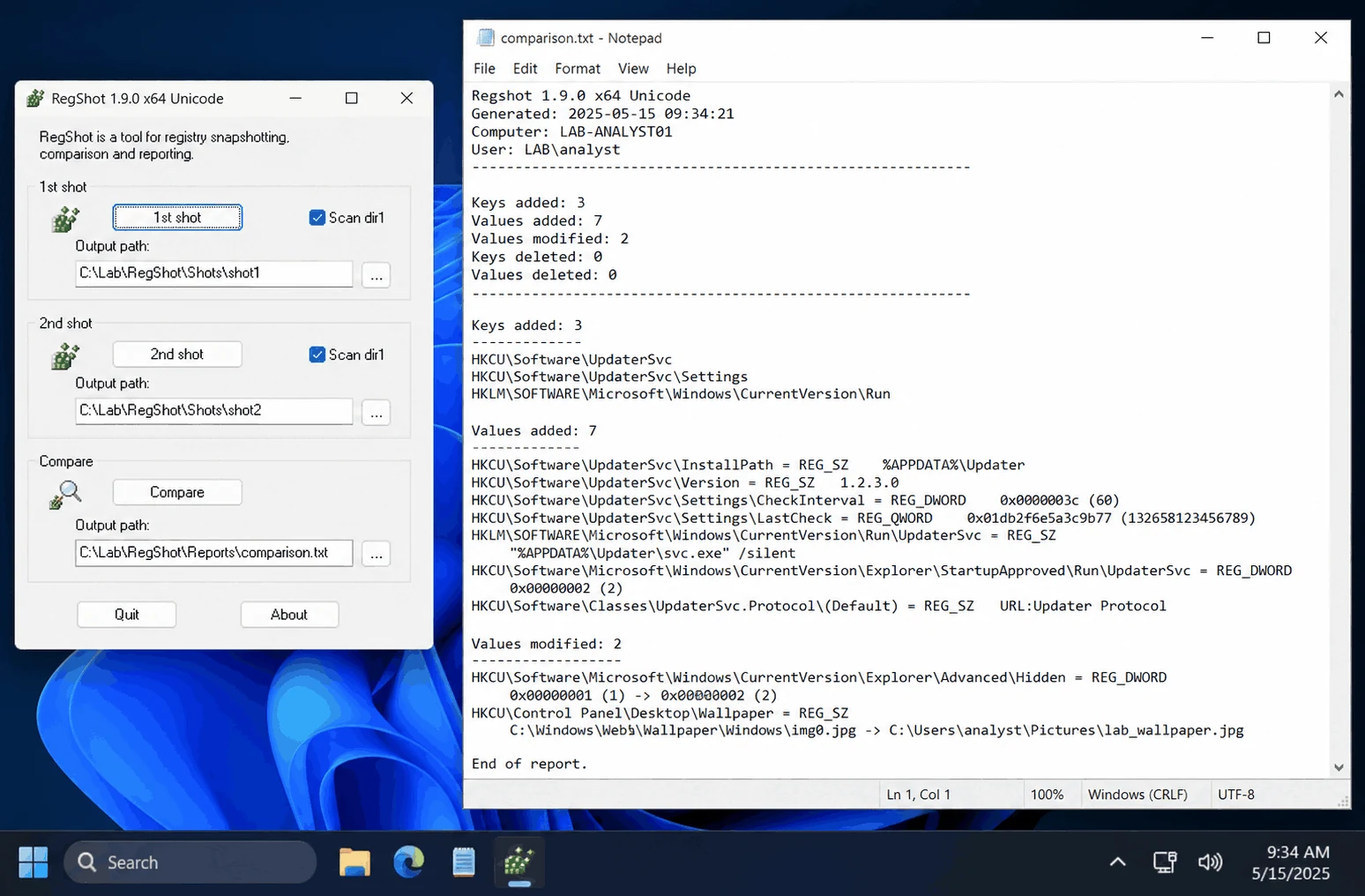
The HTML report is organized into sections:
----------------------------------
Keys added: 3
----------------------------------
HKLM\SYSTEM\CurrentControlSet\Services\MalwareService
HKLM\SOFTWARE\Microsoft\Windows\CurrentVersion\Run
HKU\S-1-5-21-...\Software\MalBot

----------------------------------
Values added: 5
----------------------------------
HKLM\SOFTWARE\Microsoft\Windows\CurrentVersion\Run\MalBot: "C:\Users\user\AppData\Local\malbot.exe"
HKLM\SYSTEM\CurrentControlSet\Services\MalwareService\ImagePath: "C:\Windows\System32\malservice.dll"
HKLM\SYSTEM\CurrentControlSet\Services\MalwareService\Start: 0x00000002
HKLM\SYSTEM\CurrentControlSet\Services\MalwareService\Type: 0x00000010

----------------------------------
Values modified: 2
----------------------------------
HKLM\SOFTWARE\...\Explorer\ShellIconOverlayIdentifiers: <changed>

----------------------------------
Files added: 4
----------------------------------
C:\Users\user\AppData\Local\malbot.exe
C:\Users\user\AppData\Local\Temp\brbconfig.tmp
C:\Windows\System32\malservice.dll
C:\Users\user\AppData\Local\Temp\dropper.bat
2. Critical Registry Persistence Locations
These are the registry keys that malware most commonly targets for persistence. Memorize them:
User-Level Persistence (HKCU)
| Registry Path | Technique | ATT&CK |
|---|---|---|
HKCU\Software\Microsoft\Windows\CurrentVersion\Run | Run on user logon | T1547.001 |
HKCU\Software\Microsoft\Windows\CurrentVersion\RunOnce | Run once, then delete | T1547.001 |
HKCU\Environment\UserInitMprLogonScript | Logon script | T1037.001 |
HKCU\Software\Microsoft\Windows\CurrentVersion\Explorer\Shell Folders | Startup folder redirect | T1547.001 |
HKCU\Software\Microsoft\Windows\CurrentVersion\Explorer\User Shell Folders | Startup folder redirect | T1547.001 |
System-Level Persistence (HKLM)
| Registry Path | Technique | ATT&CK |
|---|---|---|
HKLM\Software\Microsoft\Windows\CurrentVersion\Run | Run on any user logon | T1547.001 |
HKLM\Software\Microsoft\Windows\CurrentVersion\RunOnce | Run once at next boot | T1547.001 |
HKLM\SYSTEM\CurrentControlSet\Services | Windows service | T1543.003 |
HKLM\SOFTWARE\Microsoft\Windows NT\CurrentVersion\Winlogon\Shell | Replace Explorer shell | T1547.004 |
HKLM\SOFTWARE\Microsoft\Windows NT\CurrentVersion\Winlogon\Userinit | Logon initialization | T1547.004 |
HKLM\SOFTWARE\Microsoft\Windows NT\CurrentVersion\Image File Execution Options | Debugger hijack (IFEO) | T1546.012 |
HKLM\SOFTWARE\Classes\CLSID\{...}\InprocServer32 | COM object hijacking | T1546.015 |
Scheduled Tasks
| Location | Type |
|---|---|
HKLM\SOFTWARE\Microsoft\Windows NT\CurrentVersion\Schedule\TaskCache\Tasks | Registry-based task storage |
C:\Windows\System32\Tasks | XML task definition files |
Key insight: Malware that writes to HKCU keys only persists for the current user. HKLM keys affect all users but require administrator privileges.
3. Filesystem Change Analysis
Common Malware File Drop Locations
| Location | Why Malware Uses It | Suspicion Level |
|---|---|---|
%TEMP% (C:\Users\user\AppData\Local\Temp) | Writable without admin, commonly overlooked | Medium |
%APPDATA% (C:\Users\user\AppData\Roaming) | Persists across sessions, user-writable | Medium-High |
%LOCALAPPDATA% (C:\Users\user\AppData\Local) | Less monitored than Roaming | Medium-High |
%PROGRAMDATA% (C:\ProgramData) | Shared location, writable by admins | High |
%WINDIR%\System32 (C:\Windows\System32) | Blends with legitimate system files | Very High |
%WINDIR%\Temp (C:\Windows\Temp) | System temp, writable by services | High |
| Startup folder | Auto-runs on logon | Very High |
Filesystem Diff Without Regshot
If Regshot is unavailable, use command-line diffing:
# Before execution: capture file listing
Get-ChildItem -Path C:\ -Recurse -File -ErrorAction SilentlyContinue |
  Select-Object FullName, Length, LastWriteTime |
  Export-Csv -Path C:\baseline\files_before.csv

# After execution: capture again
Get-ChildItem -Path C:\ -Recurse -File -ErrorAction SilentlyContinue |
  Select-Object FullName, Length, LastWriteTime |
  Export-Csv -Path C:\baseline\files_after.csv

# Compare
Compare-Object (Import-Csv files_before.csv) (Import-Csv files_after.csv) -Property FullName |
  Where-Object SideIndicator -eq "=>" |
  Select-Object FullName
4. Autoruns: Persistence Point Analysis
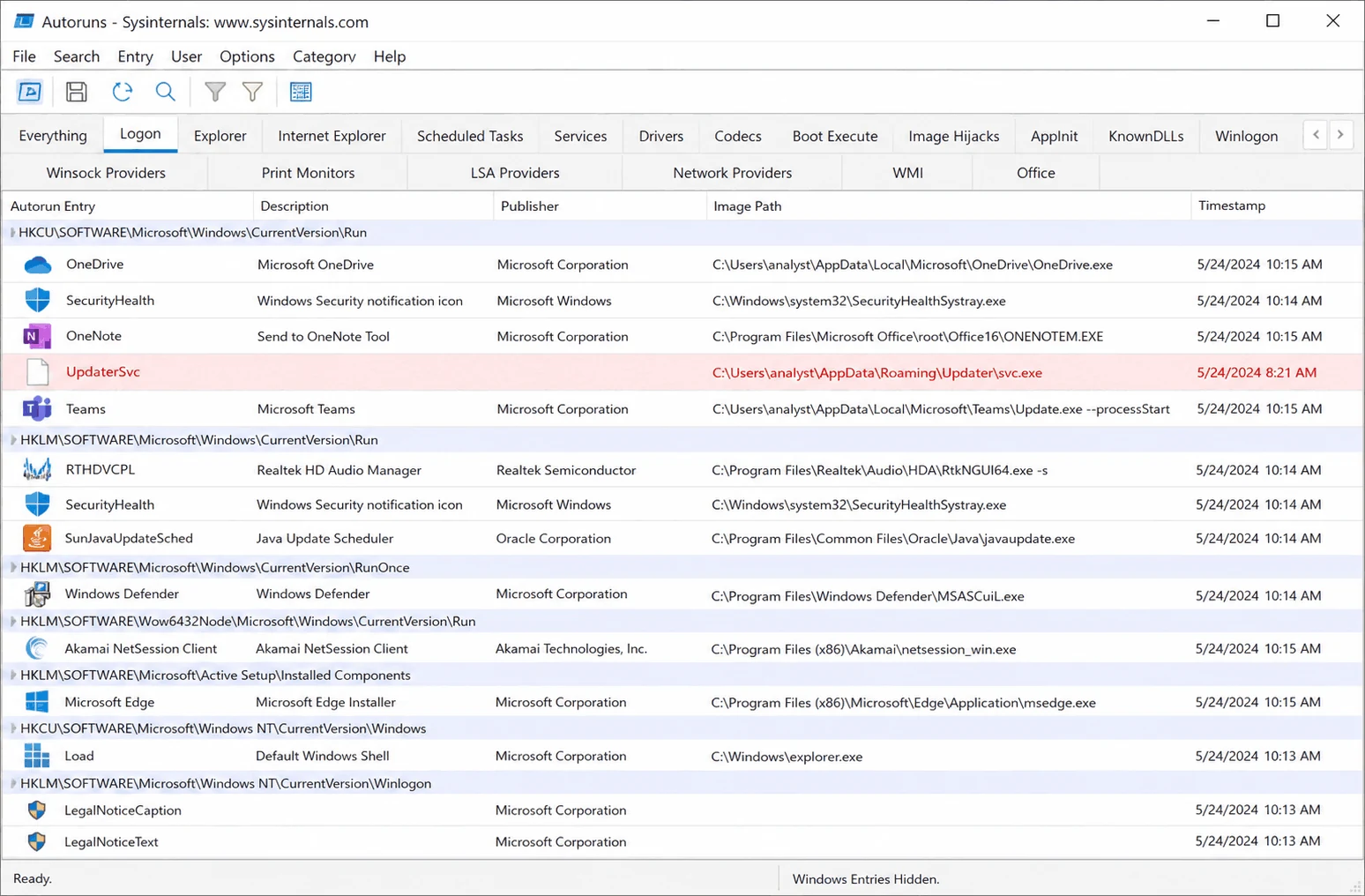
Autoruns (Sysinternals) shows every program configured to auto-start on the system. Running it before and after malware execution reveals new persistence.
Using Autoruns for Malware Analysis
Before execution:
  1. Run Autoruns as Administrator
  2. Options → Scan Options → Check "Verify code signatures"
  3. File → Save → baseline_autoruns.arn

After execution:
  1. Run Autoruns again
  2. File → Compare → Select baseline_autoruns.arn
  3. New entries are highlighted in GREEN

Green entries = new persistence installed by the malware
Autoruns Tab Reference
| Tab | What It Shows | Common Malware Targets |
|---|---|---|
| Logon | Run/RunOnce keys, Startup folder | Most common persistence |
| Explorer | Shell extensions, browser helpers | COM hijacking |
| Scheduled Tasks | Task Scheduler entries | Recurring execution |
| Services | Windows services | Service-based persistence |
| Drivers | Kernel drivers | Rootkits |
| Image Hijacks | IFEO debugger entries | Execution hijacking |
| Boot Execute | Boot-time programs | Bootkit persistence |
| WMI | WMI event subscriptions | Fileless persistence |
Autorunsc (Command-Line Version)
REM Before: save baseline
autorunsc.exe -a * -m -s -h -c > before_autoruns.csv

REM After: save post-execution
autorunsc.exe -a * -m -s -h -c > after_autoruns.csv

REM Flags:
REM   -a *  All autostart categories
REM   -m    Hide Microsoft entries (reduce noise)
REM   -s    Verify digital signatures
REM   -h    Show file hashes
REM   -c    CSV output
5. Snapshot Comparison Workflow
Combine all snapshot tools for comprehensive change detection:
Before Execution:
  1. Regshot 1st shot (registry + filesystem)
  2. Autoruns baseline save
  3. Note running processes (Process Explorer screenshot)

Execute Malware:
  4. Run sample, wait 3-5 minutes

After Execution:
  5. Regshot 2nd shot → Compare → Save HTML report
  6. Autoruns comparison → Note new GREEN entries
  7. Note new processes in Process Explorer

Analysis:
  8. Cross-reference Regshot new files with Regshot new registry values
  9. Verify Autoruns findings match Regshot registry changes
  10. Hash all new files (SHA-256) for IOC extraction
  11. Submit new file hashes to VirusTotal
Example Combined Analysis
Regshot shows:
  File added: C:\Users\user\AppData\Local\svchost32.exe
  Registry added: HKCU\...\Run\WindowsUpdate = "C:\Users\...\svchost32.exe"

Autoruns confirms:
  New Logon entry: "WindowsUpdate" → C:\Users\user\AppData\Local\svchost32.exe
  Publisher: (Not verified)  Signature: (Not signed)

Analysis:
  → Malware dropped a copy named "svchost32.exe" (mimicking svchost.exe)
  → Installed Run key persistence under the name "WindowsUpdate"
  → File is unsigned (legitimate svchost.exe is Microsoft-signed)
  → Technique: T1547.001 + T1036.005 (Masquerading: Match Legitimate Name)
Common Pitfall: Regshot reports changes from all system activity during the analysis window, not just the malware. Windows background services, updates, and telemetry create noise. Cross-reference Regshot findings with Procmon traces filtered to the malware process to confirm which changes the malware actually caused.
MITRE ATT&CK: Registry and filesystem monitoring directly reveals T1547 - Boot or Logon Autostart Execution, T1543.003 - Create or Modify System Process: Windows Service, T1546.015 - Event Triggered Execution: Component Object Model Hijacking, T1053 - Scheduled Task/Job, and T1036 - Masquerading.